Manage multiple teams
DocuSeal makes it possible to streamline document management especially for large organizations with multiple teams. For instance, the HR team working with employment contracts shouldn’t have access to the contracts signed by the procurement team, and vice versa. However, the management team should be able to oversee all the processes and access documents from all teams. Also, the IT team can have company-wide access to assist other teams with their document signing processes.
Create and manage multiple teams
To create a team:
- Navigate to Settings / Teams.
- Click on the New Team button.
- Enter your team name and click Submit.
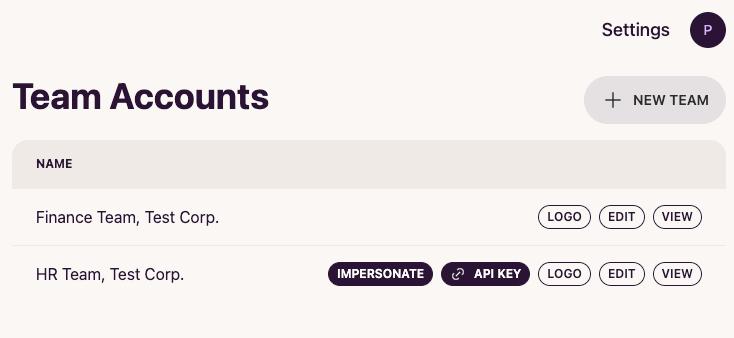
Now you can click on the View button to open the team page and add users to the team. New users within the team will have the ability to manage the documents that belong to their team but not the managing team or the other teams.
The managing team users can enter another team to view their documents. Also, the IT team can obtain API keys for each team to implement automation.
Additionally, the managing team can clone templates into other teams.
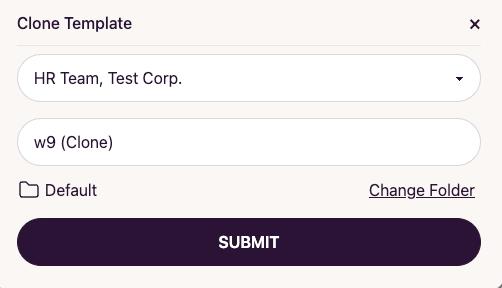
This is how DocuSeal facilitates document workflow management for multiple teams.
Move users between teams
To move users from one team to another:
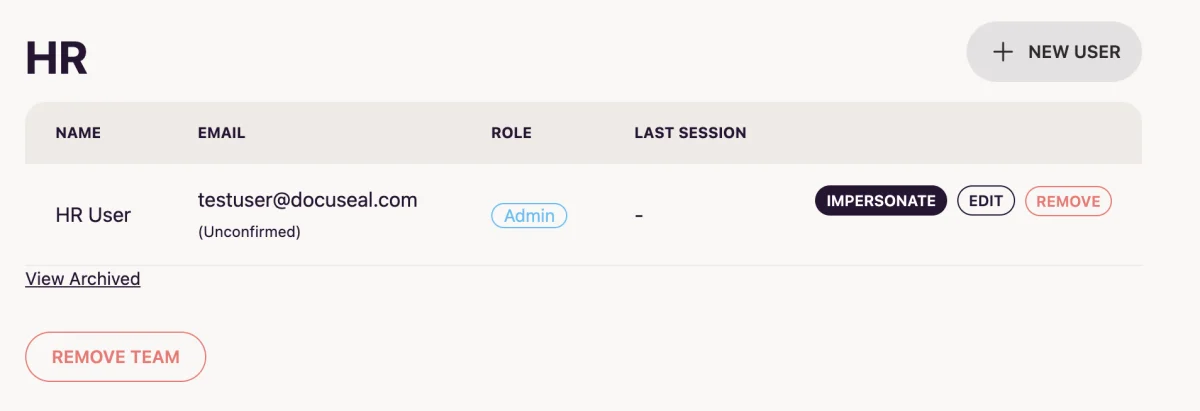
- Click on a Team from which you want to move an existing user. Let’s say you want to move the HR User from HR Team to the Logistics Team. Click on View in the HR Team which brings you to the User view of that Team.
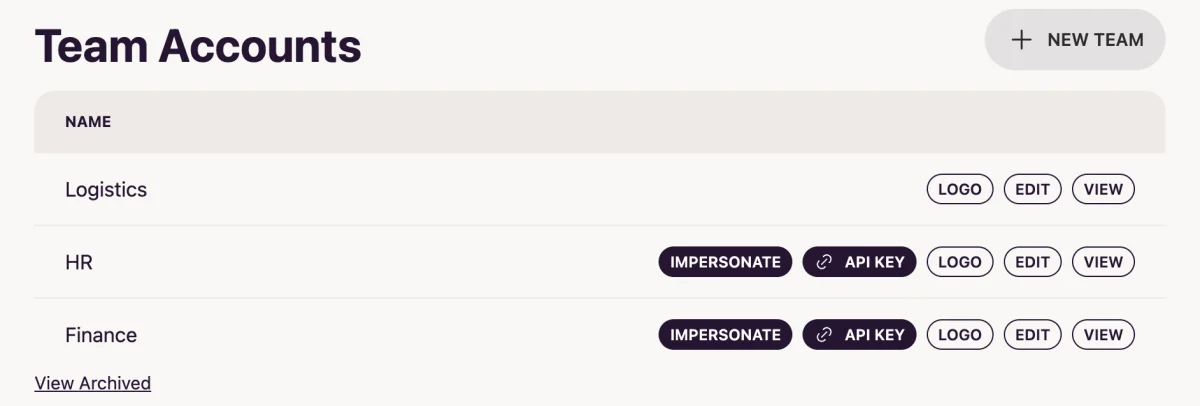
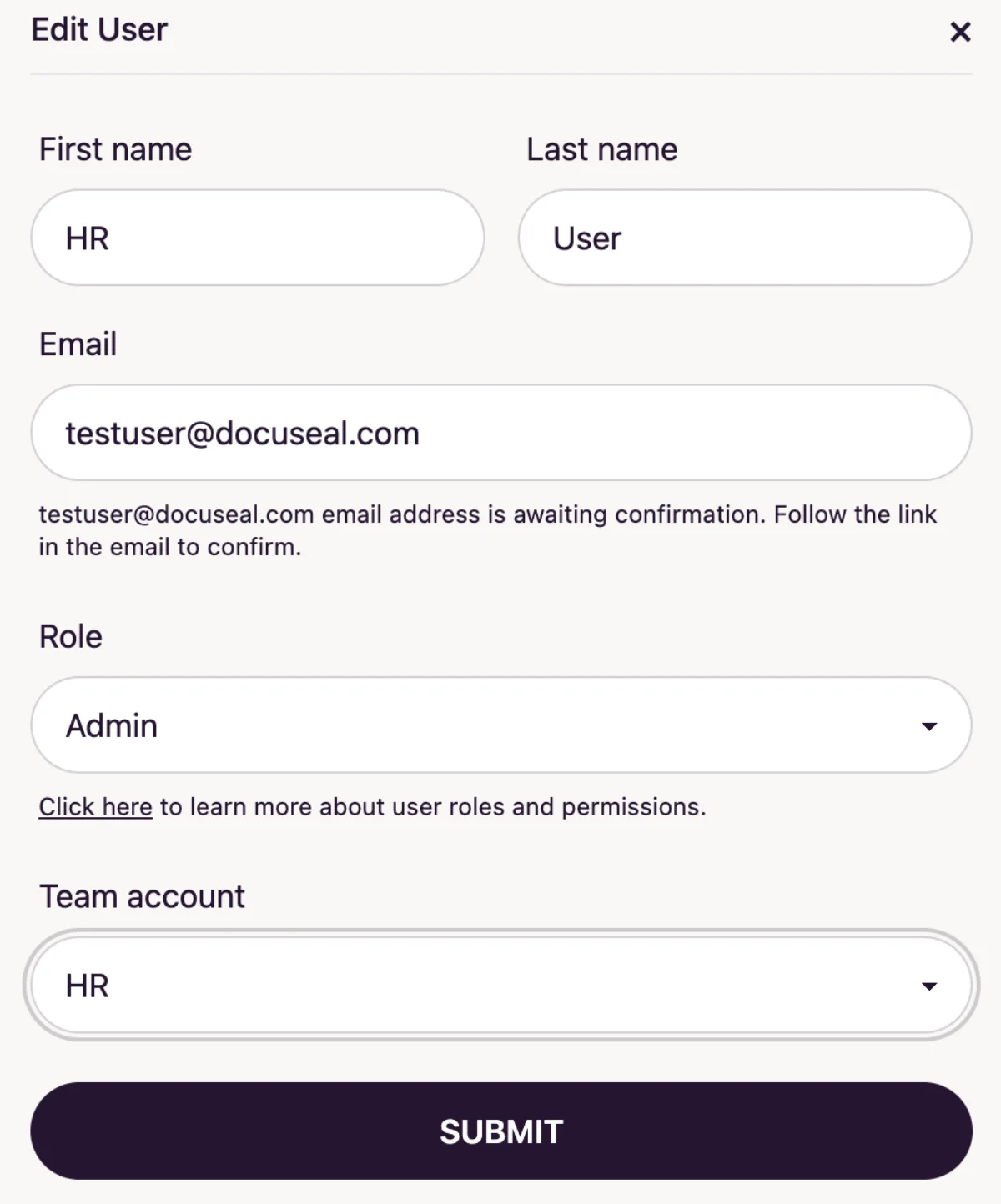
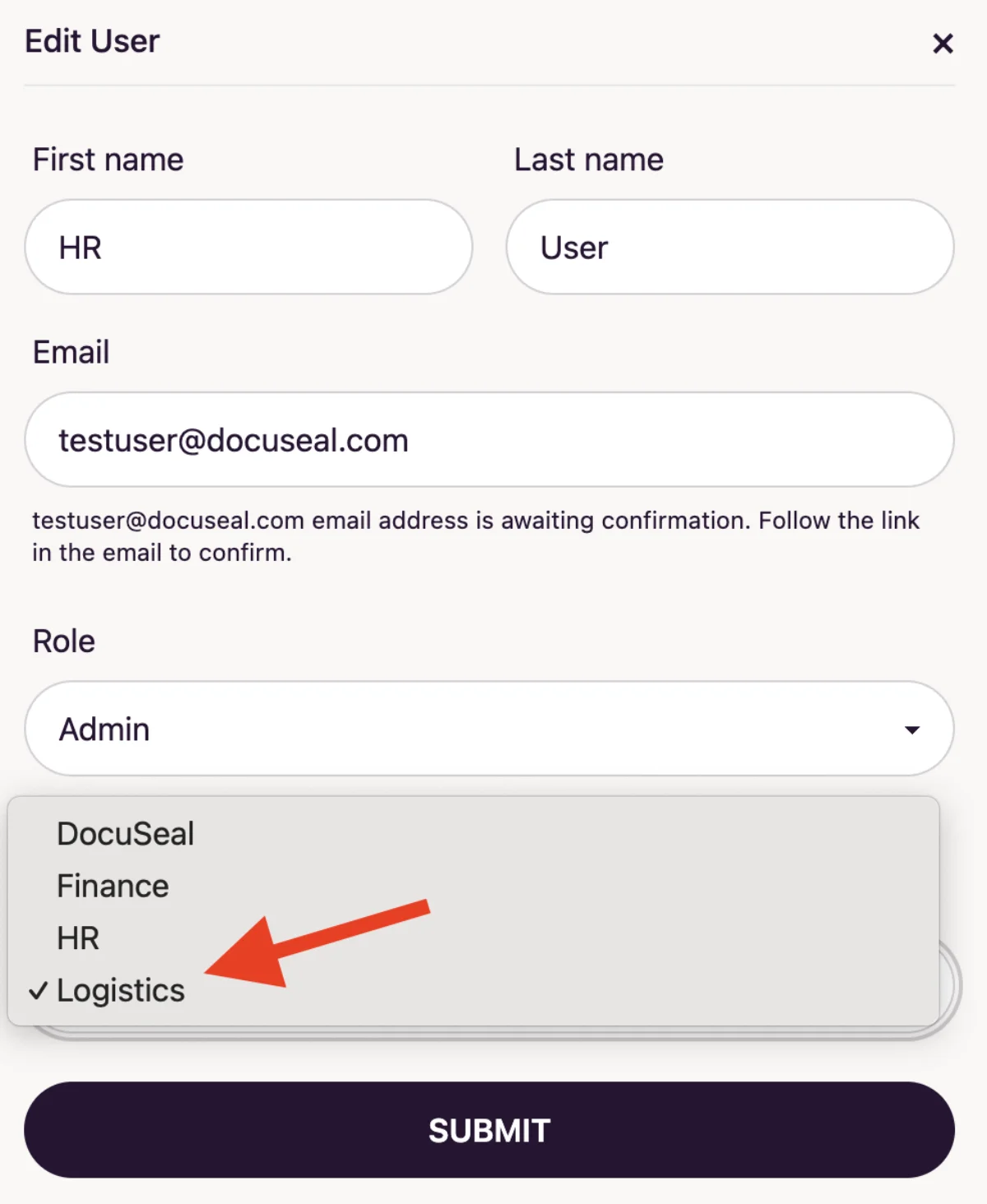
- Click on Edit and go to “Team account”. From the drop-down options of Team, you can choose the Logistics Team that you want this user to be moved to.
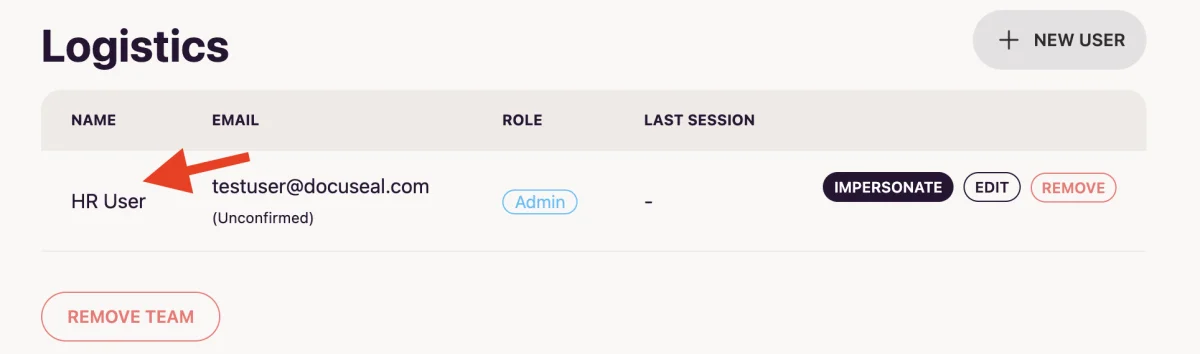
- Now when you click on the Logistics Team, you should be able to see this HR user added there.
Remove a team
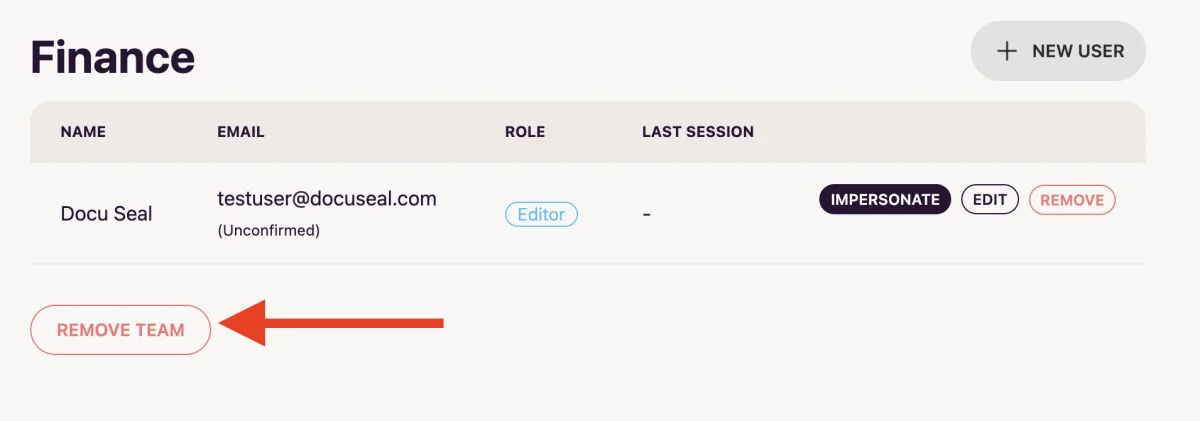
You can click on the “Remove Team” button to remove a Team at any point. If you would like to unarchive a Team, please email support@docuseal.com.