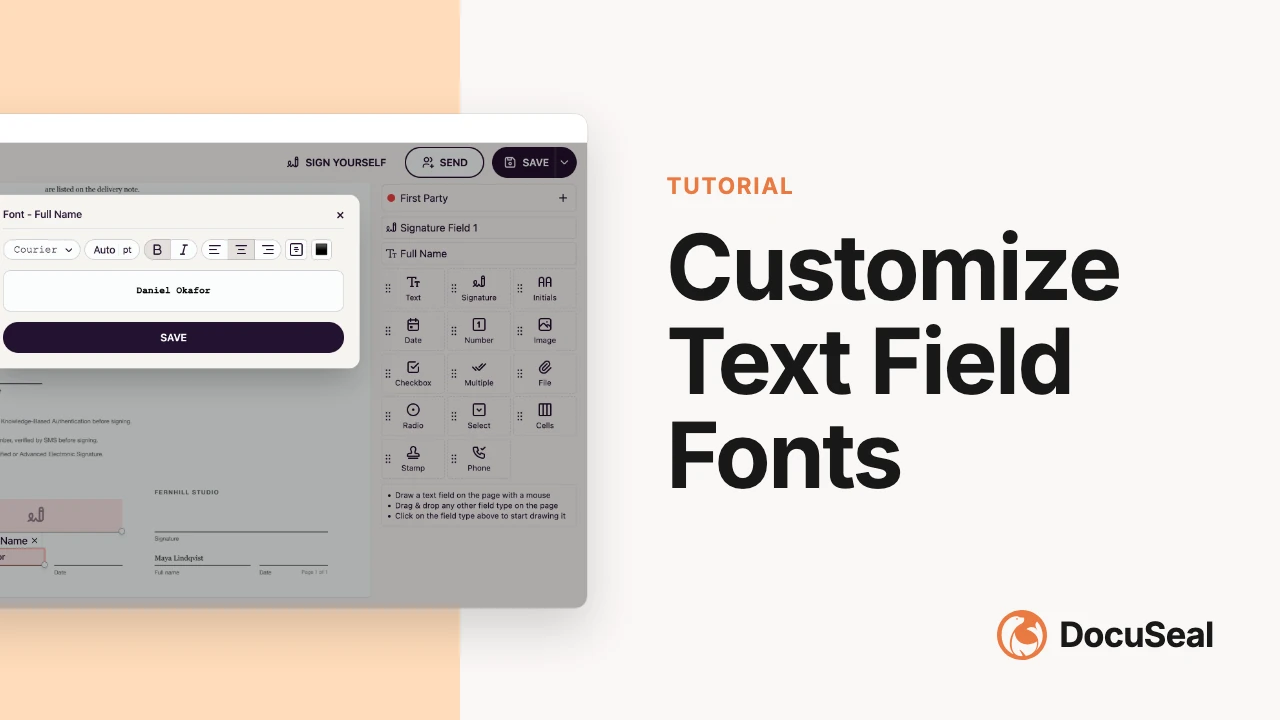
Customize text field font settings
You can customize how text appears in your template document text field using the font settings:
- Click on the settings gear in the added text field.
- Click on Font from the drop-down menu. Alternatively, you can right-click on the field area to open the context menu and select Font.
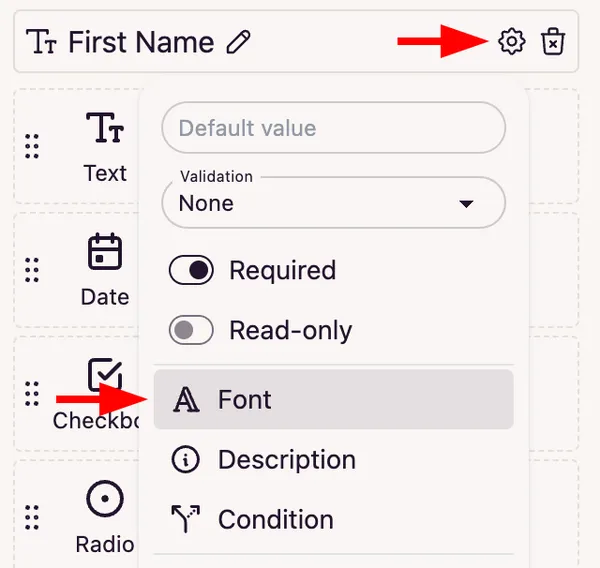
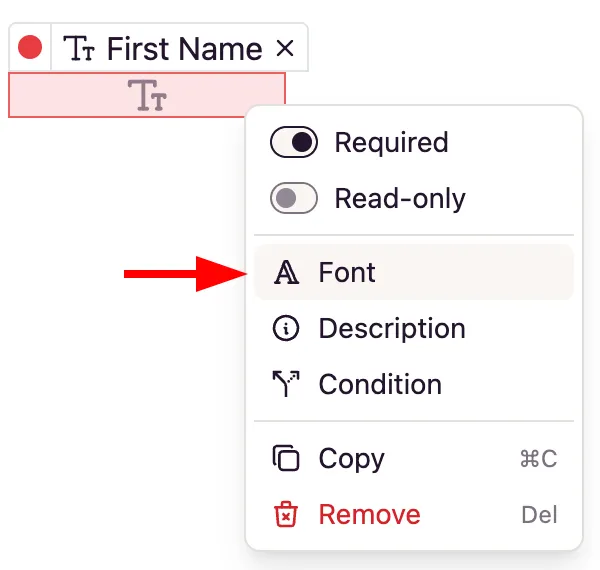
Here is a breakdown of the available Font options:
-
Font Family
Click the dropdown to choose your desired font style from the available options: Default, Times, Courier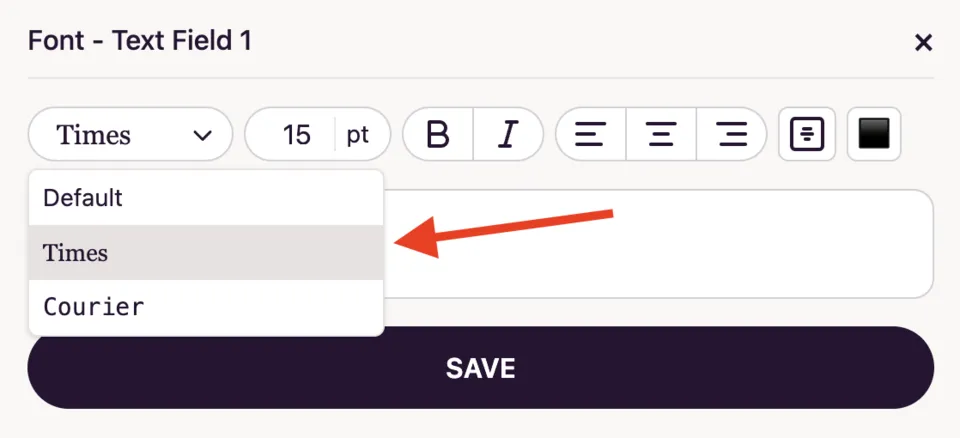
We have selected Courier in our example below.
-
Font Size
Adjust the number to change the font size. You can choose the desired font size from the dropdown menu.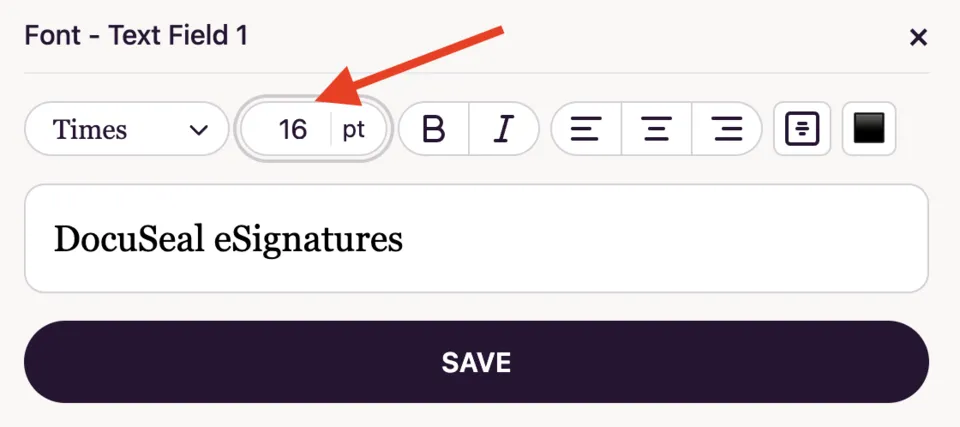
-
Text Style
B: Bold - Makes the text thicker
I: Italic - Slants the text for emphasis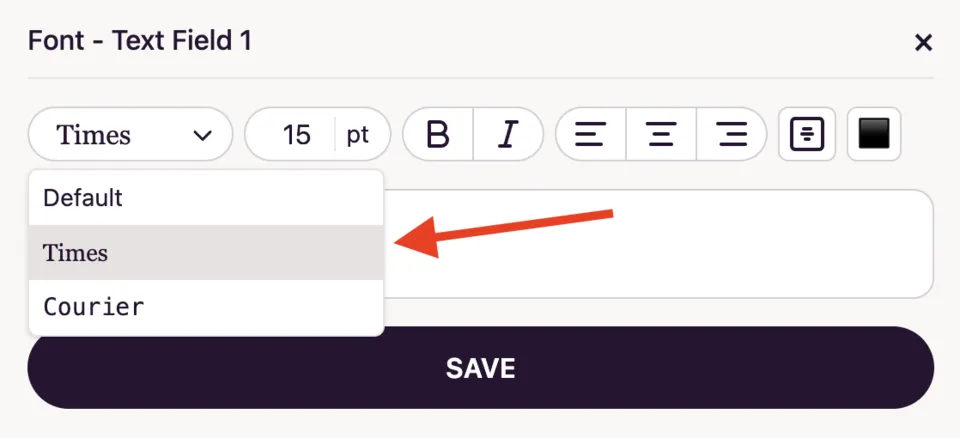
We have selected Bold in our example below.
-
Text Alignment
Align Left: Text is aligned to the left margin in the field
Center Align: Text is centered in the field
Align Right: Text is aligned to the right margin in the field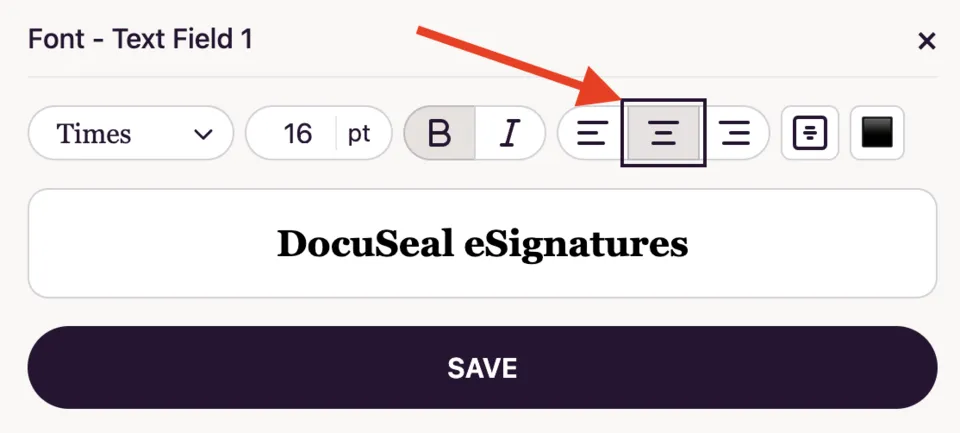
We have selected Center Align in our example below.
-
Vertical Alignment
Use this icon with stacked lines to vertically align the text: Top, Middle or Bottom of the field box.
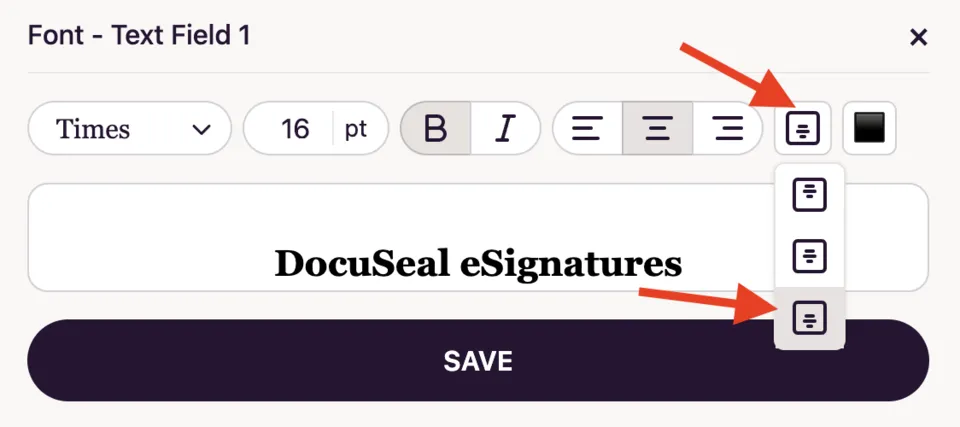
We have selected Bottom Vertical Alignment in our example below.
-
Text Color
Click the color box to change the text color. You can choose from the dropdown of available options black, blue and red.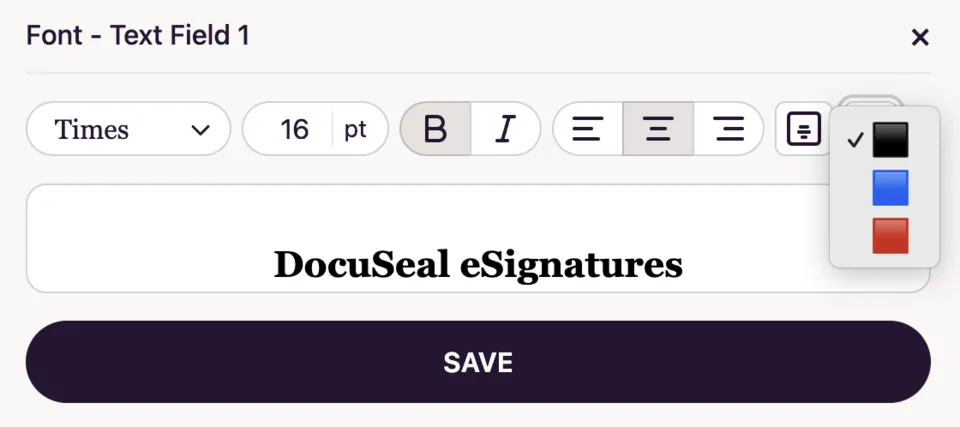
-
Preview and Save
You’ll see a preview of your styled text (e.g., DocuSeal eSignatures) in the field.
Click the Save button to apply your changes.