Create folders
Keeping your templates organized is easy with folders in DocuSeal. Here’s how you can create a new folder or move templates into existing ones:
- Create a new folder
- Move a template to an existing folder
- Create a new subfolder
- Drag and Drop folders
Create a new folder
- Upload your documents as usual.
- On the right side of the template row, click Move.
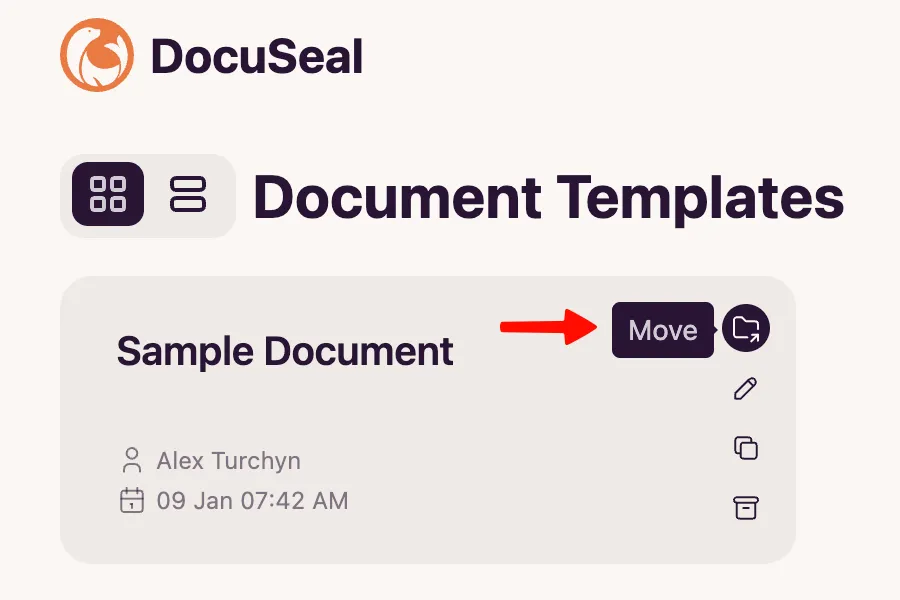
- In the folder input field, type a new folder name and press Move.
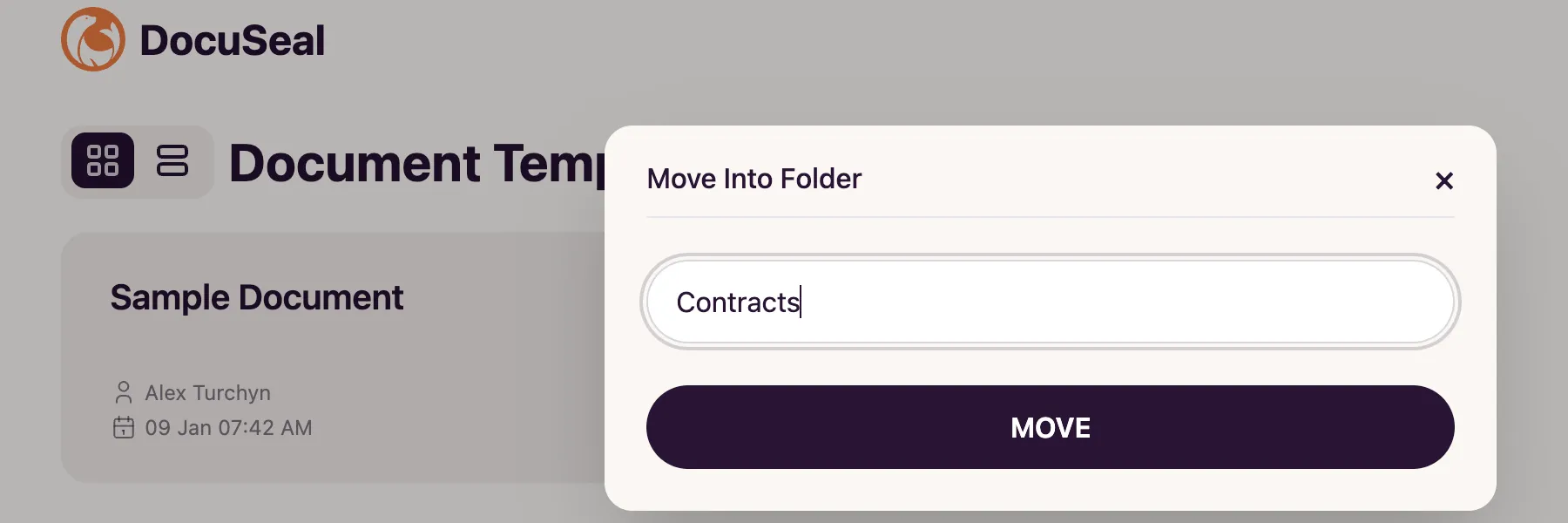
- This automatically creates the folder and moves your template into it.

Move a template to an existing folder
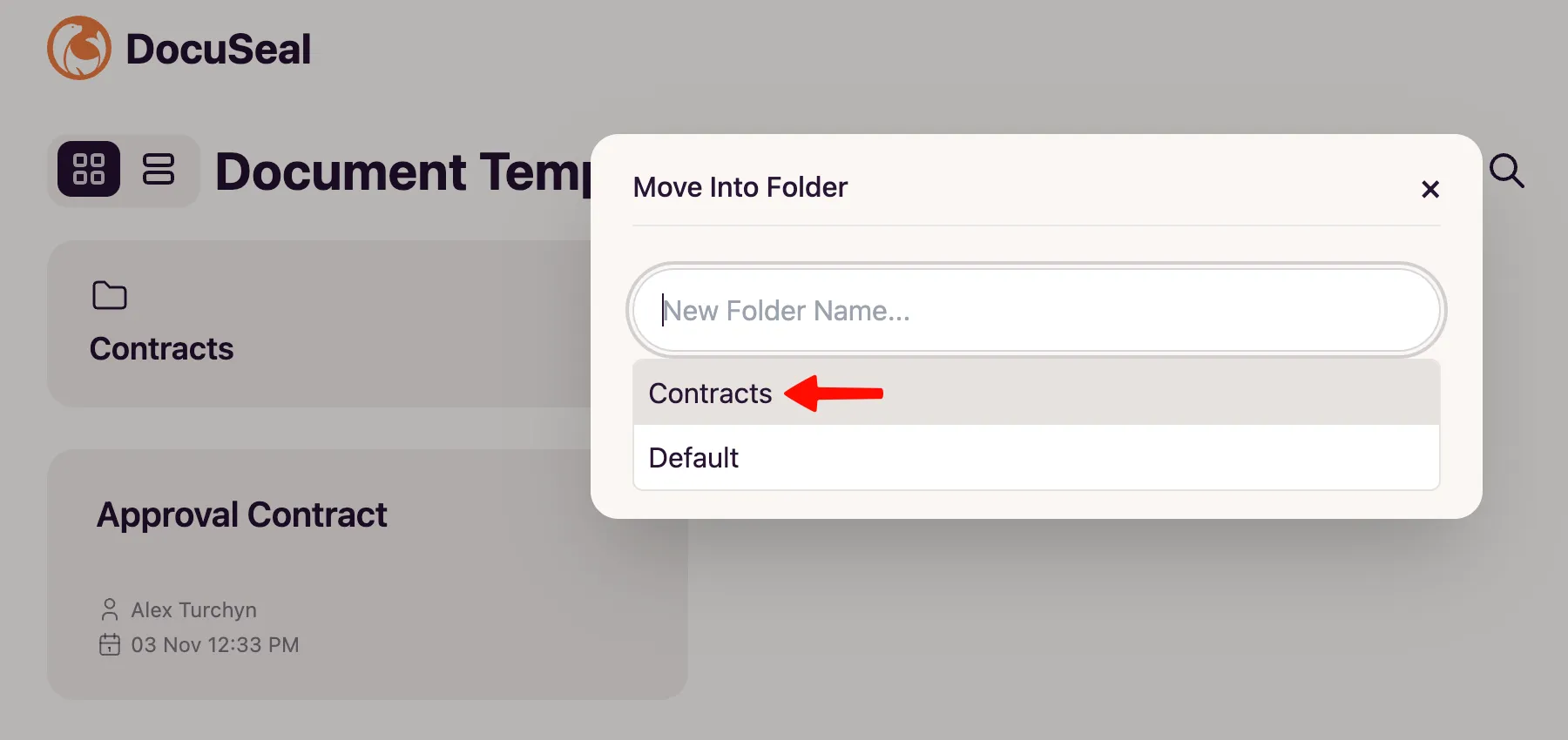
- Click the Move button next to the template.
- From the dropdown list (of all existing folders), select the folder where you’d like to move the template.
Create a new subfolder
- Open the folder where you want to create a subfolder.
- On the right side of the template row, click Move.
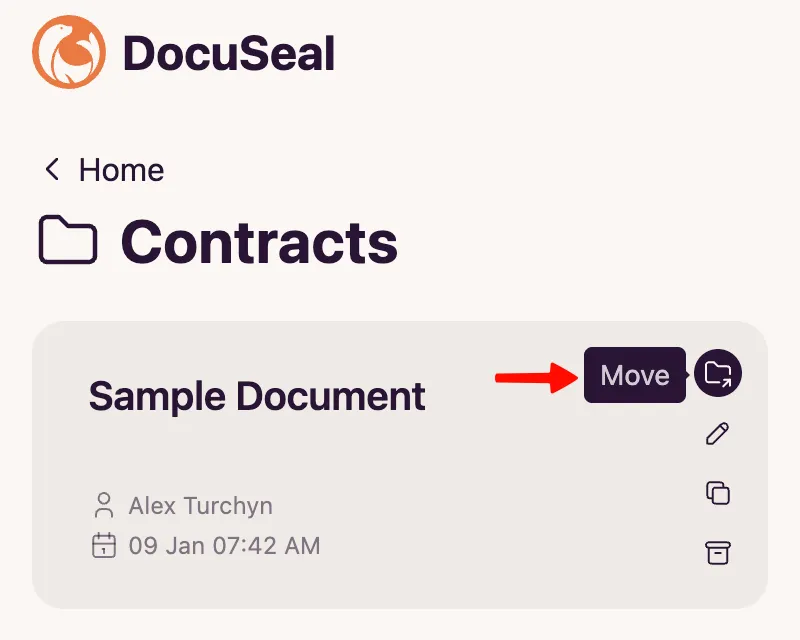
- In the folder input field, type the new subfolder name and press Move.
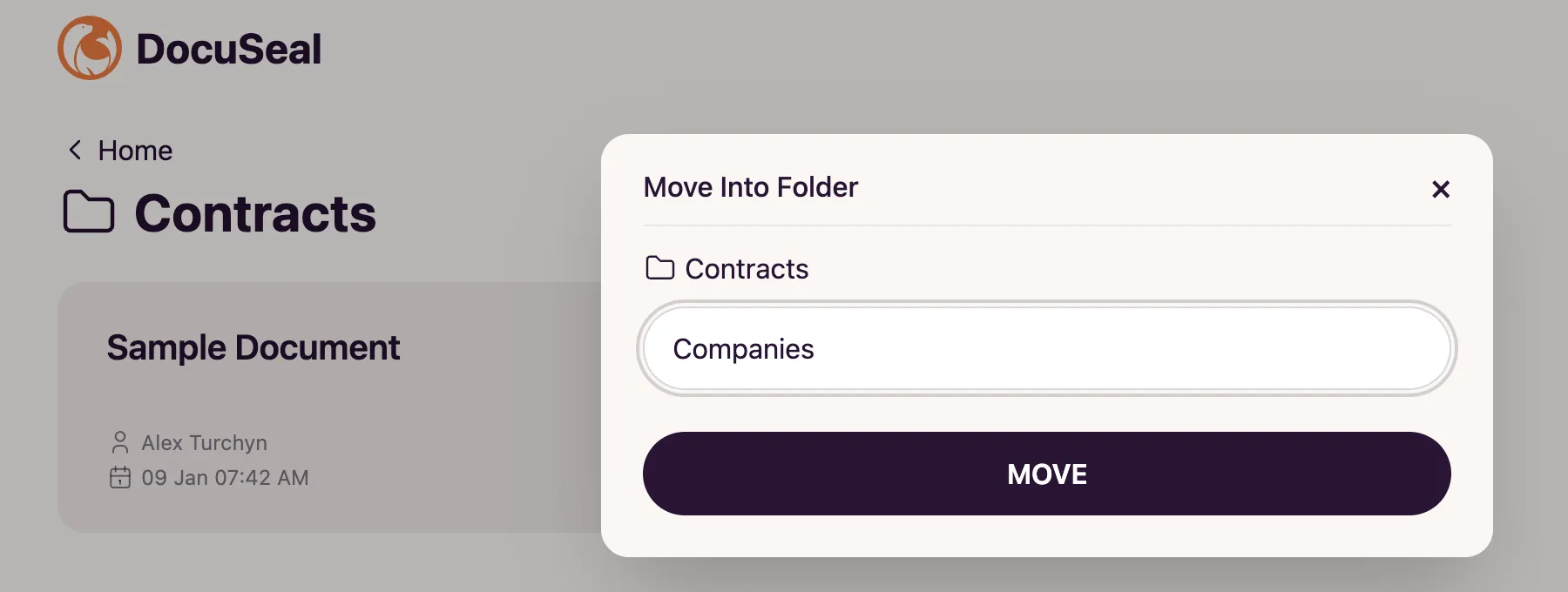
- This will automatically create the subfolder and move your template into it.

Note: If you want to create a subfolder without first moving the template to the parent folder, when entering the new subfolder name, use the format: “Parent Folder / Subfolder Name”.
Drag and Drop folders
- Open the template dashboard where you already have a folder, or open the parent folder where the subfolder is located.
- Drag and drop your template from the template grid (or file from your computer) to the folder/subfolder.
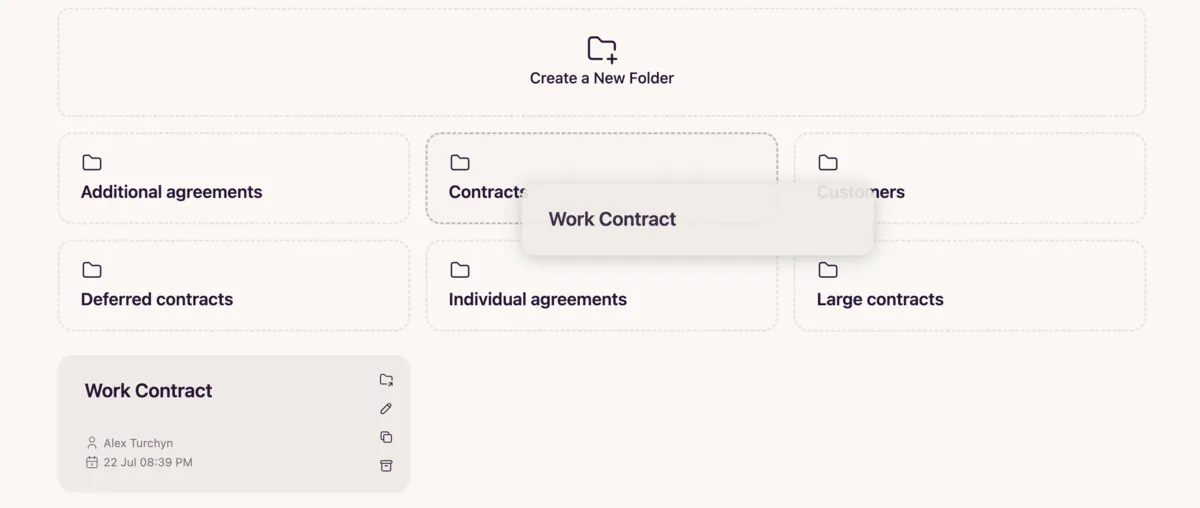
- The template will be automatically moved to the selected folder/subfolder.