Use custom fields
As the number of templates grows, you may find yourself adding the same fields with the same properties over and over again. To speed things up, you can create custom fields and reuse them across different templates. Any field in your template can be saved as a custom field for later use.
Create a custom field
- Open the template builder that contains the field you want to save, or add a new field.
- Configure the field with the desired properties (name, type, validations, etc.). All settings will be preserved in the custom field.
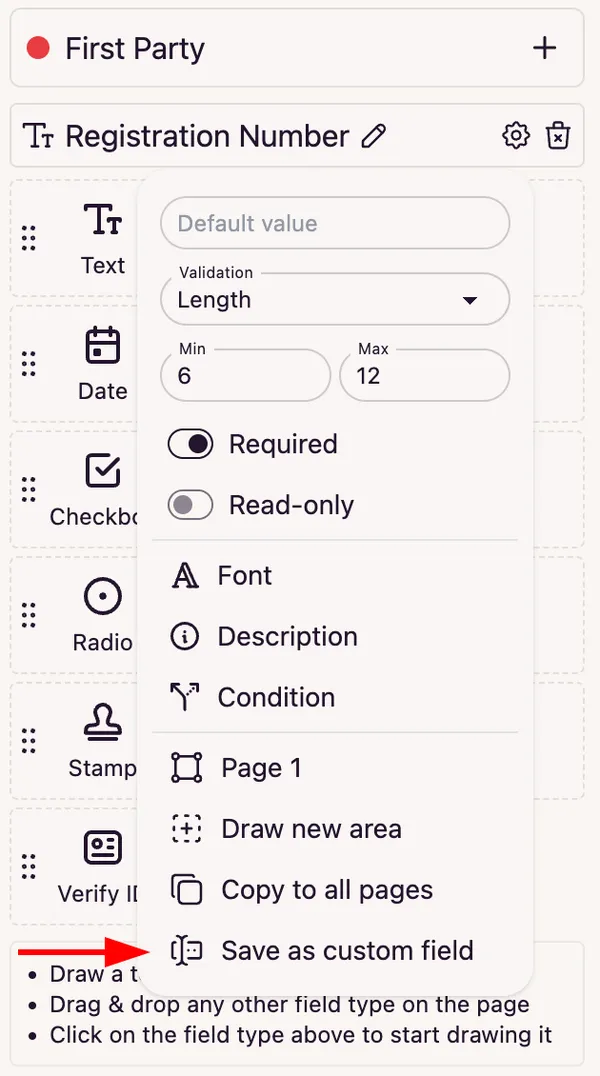
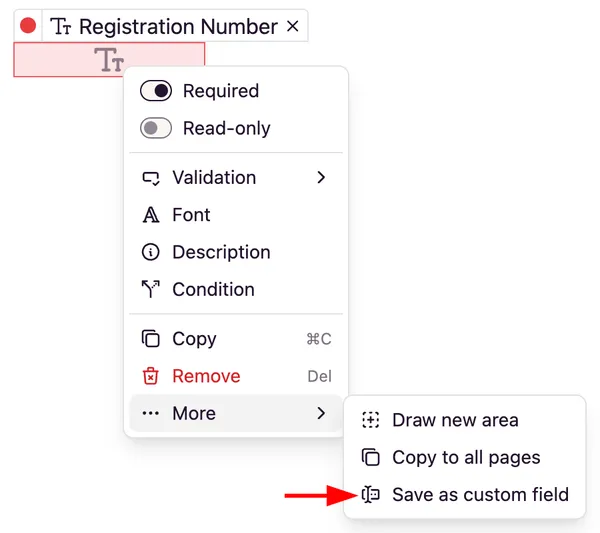
- To the right of the field name, a button with a gear () icon will appear. Click on it and select Save as Custom field. Alternatively, you can right-click on the field area to open the context menu and select More → Save as Custom field.
- The field list will update and you’ll see two tabs: Default and Custom. Switch to the Custom tab.
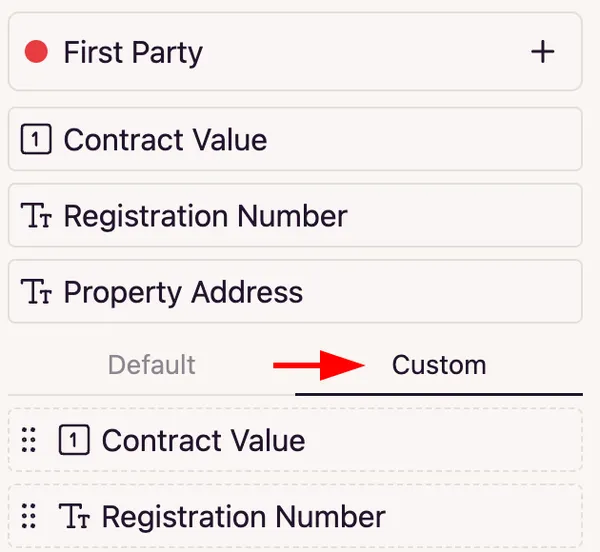
- In the Custom tab you’ll see a list of all the custom fields you’ve created. You can now use them in any template.
Note: The available properties for a custom field depend on the field type.
Add a custom field
- Open the template builder where you want to use a custom field.
- On the right side, below the list of added fields, you’ll see two tabs: Default and Custom (provided you’ve saved at least one custom field). Switch to the Custom tab.
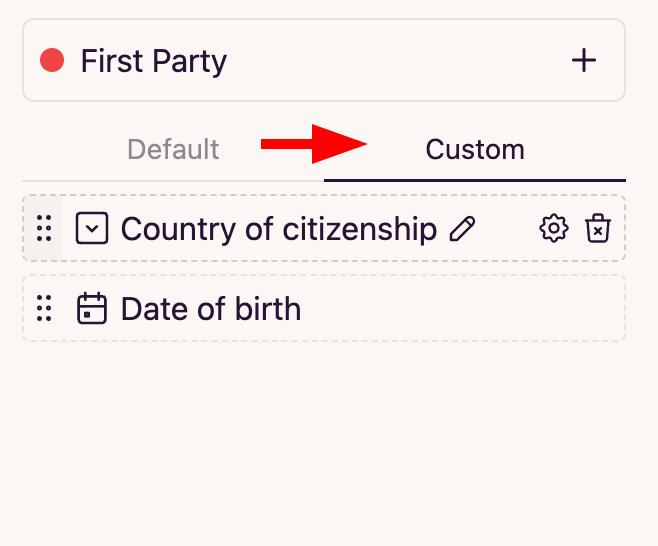
- Select the custom field you need from the list and drag it onto the template, or simply click on it to add it.
- That’s it! You’ve successfully added a custom field to your template.
Note: Custom fields created for templates in test mode will not be available in production mode templates, and vice versa.