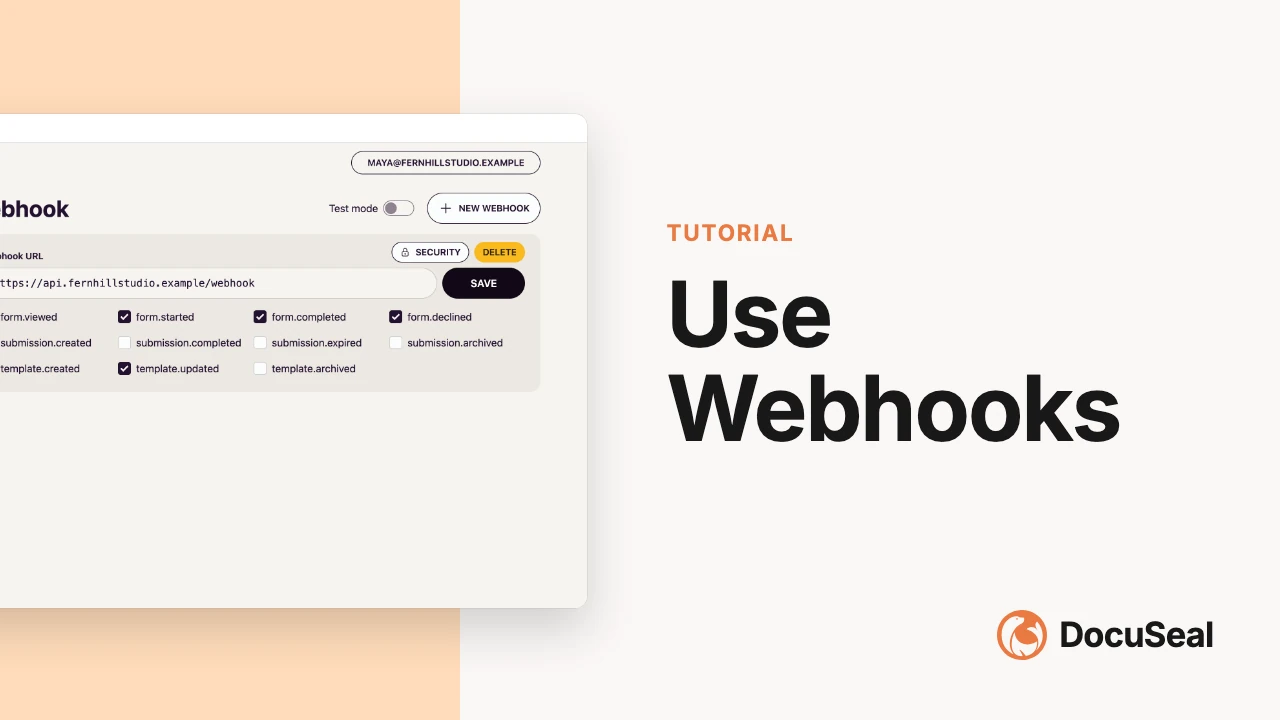
Use Webhooks
Webhooks can be used to receive notifications about events occurring in DocuSeal. They allow you to automatically synchronize data between DocuSeal and your application or receive real-time event notifications.
For example, you can use webhooks to get notified when templates are created or updated, or when documents are signed. Services like Zapier, Make.com and n8n also work seamlessly with DocuSeal Webhooks.
How to Add a New Webhook
- Log in to your DocuSeal account.
- Click on your user initials in the top right corner and select Console.
- In the left menu, select Webhooks.
- On the opened page, you will see a form to create a new webhook. If you already have webhooks set up, they will be listed here. To create a new webhook, click New Webhook in the top right corner.
- Enter the URL where you want to receive event notifications.
- Below the input field, select the event types you want to receive notifications for.
- Click Save to create the new webhook.
- Done! You will now receive event notifications from DocuSeal at the specified URL.
How to Add a Webhook Secret to All Notifications
- After creating a new webhook, click the Security button in the top right corner and open the Secret tab.
- In the opened window, enter your secret key and value.
- Click Save to store the secret key.
- Done! All webhook notifications will now include your secret key-value pair in the request headers. This allows you to verify that the notification was sent from DocuSeal.
How to Verify Webhooks with HMAC Signatures
Every webhook request is signed with an HMAC-SHA256 signature, sent as the X-Docuseal-Signature header. This proves the request came from DocuSeal and hasn’t been tampered with in transit.
To get your signing secret, click the Security button in the top right corner of the webhook page and open the HMAC tab. Click the masked input to reveal the full whsec_... value, then copy it.
The signature header has the format [timestamp].[signature]. The signed content is [timestamp].[raw_body]. To verify, recompute the HMAC and compare it with the received signature using a constant-time comparison.
Node.js Verification
const crypto = require('crypto');

function verifyWebhook(req, secret) {
  const header = req.headers['x-docuseal-signature'];
  if (!header) return false;

  const [timestamp, signature] = header.split('.', 2);

  // Reject stale requests (5 minute tolerance)
  if (Math.abs(Date.now() / 1000 - Number(timestamp)) > 300) return false;

  // Recompute the signature over `${timestamp}.${rawBody}`
  const expected = crypto
    .createHmac('sha256', secret)
    .update(`${timestamp}.${req.rawBody}`)
    .digest('hex');

  return (
    expected.length === signature.length &&
    crypto.timingSafeEqual(Buffer.from(expected), Buffer.from(signature))
  );
}
You need the raw request body — the exact bytes DocuSeal sent — not a re-serialized JSON object. If your framework parses and re-serializes the body before you can read it, the signature will not match even when the JSON content is semantically identical. Always verify against the exact bytes received on the wire.
How to Use Webhooks in a Local Development Environment
- When creating a new webhook, enter your local URL where you want to receive event notifications.
If the domain is listed as an allowed host, you can use it directly:
- 0.0.0.0
- 127.0.0.1
- localhost
- host.docker.internal
- docker.for.mac.localhost
- docker.for.win.localhost
- Click Save to store the new webhook.
- Below the URL input field, you will see a command that you can use to start a tunnel, allowing you to receive notifications from DocuSeal.
- Open a new terminal and run the copied command.
- Done! You can now receive event notifications from DocuSeal in your local development environment.